

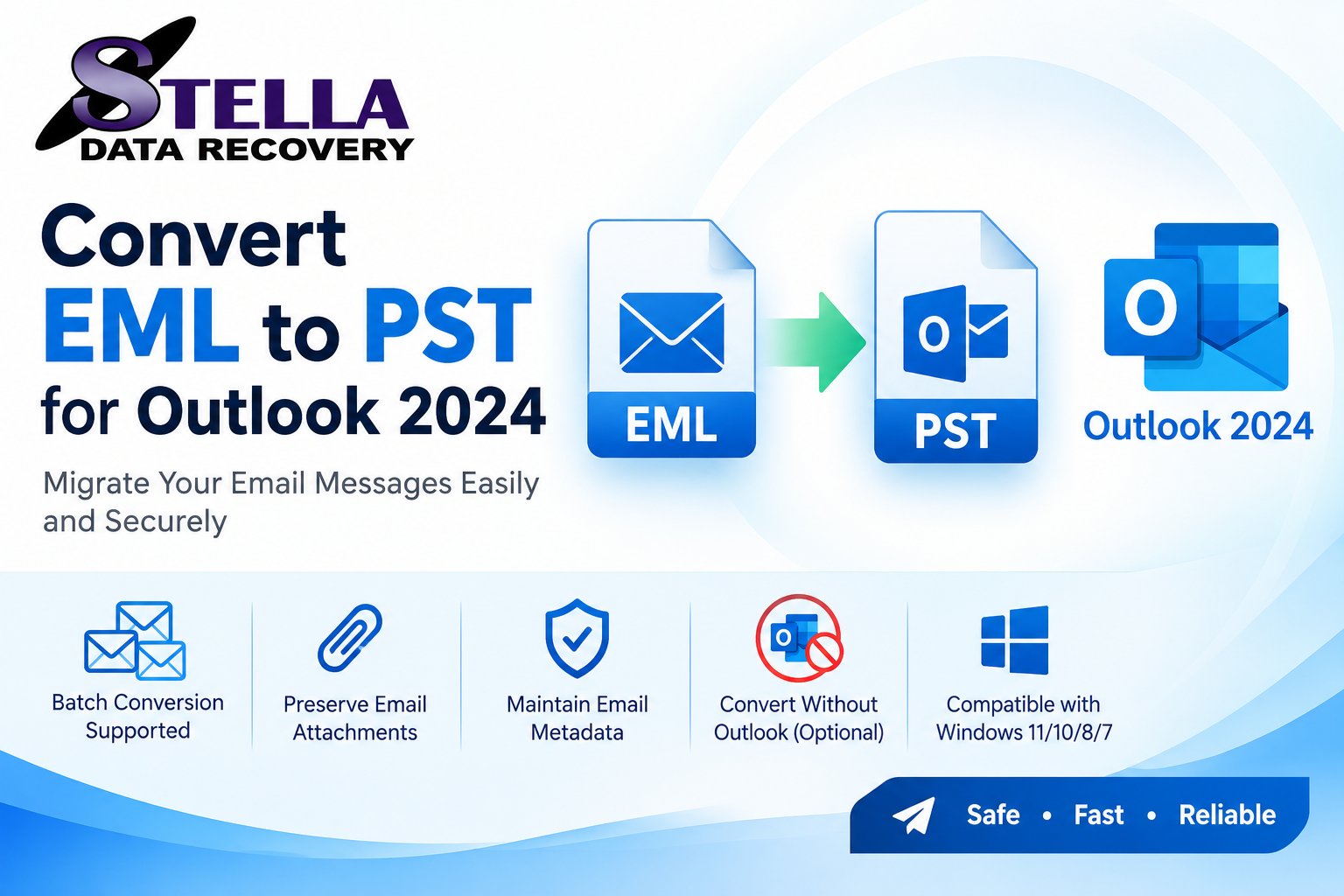

Email data plays an important role in personal communication, business operations, customer support, and project management. When email messages are stored in EML format but need to be accessed through Microsoft Outlook, converting them into PST format can provide a practical migration solution. An EML to PST Converter Software tool is designed to simplify this process by converting individual email files into an Outlook-compatible data file.
Manually moving a large number of EML files can be time-consuming, especially when the archive contains important attachments, nested folders, and years of business correspondence. Professional conversion software can help streamline the workflow through features such as batch processing, selective export, email preview, and folder organization.
This guide explains how EML to PST converter software works, its key benefits, the features to evaluate, and the steps involved in completing a reliable email migration.
What Is EML to PST Converter Software?
EML to PST converter software is an application designed to convert email messages saved in EML format into a PST file for use with compatible Microsoft Outlook versions.
An EML file generally stores one email message, including information such as the sender, recipient, subject, date, message body, and supported attachments. A PST file can contain multiple email items and folders within an Outlook data file.
Users may need this conversion when migrating from another email client, consolidating archived messages, or preparing email records for an Outlook-based workflow.
A dedicated converter can simplify the process by allowing users to select multiple EML files, choose PST as the output format, and save the converted data to a specified location. Available features depend on the software selected.
Why Do Users Need an EML to PST Converter?
There are several situations in which EML to PST conversion software can be useful.
1. Migrating Email Messages to Outlook
Users switching email applications may have hundreds or thousands of EML files saved on their computers. Converting supported messages into PST format can help consolidate them for use in compatible Outlook workflows.
2. Handling Large Email Archives
Manual conversion becomes difficult when working with large collections. Software that supports batch processing can reduce repetitive work by converting multiple messages in one operation.
3. Maintaining Important Email Information
Business emails often contain customer details, invoices, project discussions, and attachments. A suitable converter should aim to retain relevant message properties, but users should verify the output rather than assume every field will be preserved perfectly.
4. Organizing Archived Emails
A converter with folder-selection and folder-mapping features can help users organize email messages according to projects, departments, clients, or dates.
5. Supporting Business Email Migration
Organizations may need to migrate archived email data when changing email clients or consolidating records. A structured conversion process can make migration easier to plan, test, and document.
Essential Features of Professional EML to PST Converter Software
Before choosing a conversion tool, evaluate the following features.
Batch conversion: Allows multiple EML files or folders to be processed together. This is particularly helpful for large email archives.
Attachment handling: Supports the transfer of attachments included in source messages. Test representative files to confirm that attachments remain accessible.
Folder preservation: Helps maintain the original folder organization or provides options to map source folders to destination folders.
Email preview: Allows users to inspect selected messages before conversion, helping identify missing content or unexpected formatting.
Selective export: Enables users to convert specific files or folders rather than processing the entire archive.
Compatibility: The software should support your operating system, EML source files, and intended Outlook version.
Error reporting: Conversion logs can help identify files that were skipped, damaged, or unsupported.
Data security: Review the vendor's privacy policy and determine whether files are processed locally or transmitted to external servers.
Trial availability: A trial can help you evaluate the conversion quality before purchasing a license. Check whether the trial restricts the number of files or the ability to save a complete PST.
How to Convert EML Files to PST Using Software
Although individual applications have different interfaces, most dedicated converters follow a similar workflow.
Step 1: Prepare the EML Files
Collect the EML files you want to convert and organize them into folders if necessary. Create a backup of the original messages before beginning.
Step 2: Install the Converter
Download the software from its official website. Review the system requirements and installation instructions before launching the application.
Step 3: Add EML Files or Folders
Use the file-selection option to browse for individual EML files or folders containing multiple messages. If the software supports recursive scanning, confirm that the required subfolders are included.
Step 4: Preview the Emails
Inspect a sample of the selected messages if preview is available. Check sender information, subject lines, dates, message bodies, and attachments.
Step 5: Select PST as the Output Format
Choose PST as the destination format and specify the location where the converted file should be saved. Configure folder-mapping options if they are available.
Step 6: Start the Conversion
Begin the conversion and allow the software to finish processing the selected messages. Large archives may take longer depending on the number of files, attachment sizes, and computer resources.
Step 7: Import or Open the PST in Outlook
In supported versions of classic Outlook for Windows, you can generally use File > Open & Export > Import/Export and select the option to import from an Outlook Data File (.pst). Follow the prompts to complete the process.
Outlook menus and data-file support vary by version and platform. Check Microsoft's documentation for your installed edition before proceeding.
Step 8: Verify the Converted Data
Review representative messages in Outlook. Confirm that the email content, attachments, timestamps, and folder structure meet your requirements. Keep the original EML files until the migration has been verified.
Free EML to PST Converter vs. Professional Software
Users often compare free conversion options with paid professional tools. The right choice depends on the archive size and required features.
| Feature | Free option | Professional software |
|---|---|---|
| Small email collections | May be sufficient | Suitable |
| Batch conversion | May be limited | Often available |
| Folder mapping | Depends on the tool | May offer advanced options |
| Selective export | Varies | Often available |
| Technical support | May be limited | Depends on the license |
| Conversion limits | May apply | Check product terms |
| Cost | Free or trial-based | Usually paid for full functionality |
Free options may be adequate for simple tasks, while paid software may be useful for larger or more complex migrations. However, do not assume that every paid product offers better results. Test the software with representative EML files before making a decision.
Common Problems During EML to PST Conversion
Missing Attachments
Check whether the source message contains the attachment and whether the converter supports it. Test emails with different attachment types before converting the complete archive.
Unsupported EML Files
Some messages may be damaged or formatted in ways the selected tool cannot process. Review error reports and test problematic files individually.
Folder Structure Changes
If folders are missing or reorganized, check whether the software supports nested folders and folder mapping.
PST File Import Errors
Verify that the conversion completed successfully and that your Outlook version supports the intended PST workflow. Keep a backup before troubleshooting.
Slow Conversion Speed
Large archives can require substantial processing time. Consider working in smaller batches and ensuring sufficient disk space is available.
How to Choose the Best EML to PST Converter Software
Use the following checklist before selecting a product:
-
Identify the number and size of your EML files.
-
Confirm compatibility with your operating system and Outlook version.
-
Check batch conversion and folder-preservation features.
-
Verify attachment handling and supported email properties.
-
Review privacy practices, licensing terms, and trial restrictions.
-
Test a representative sample before converting the complete archive.
-
Confirm that the resulting PST opens and contains the expected messages.
A reliable converter should meet your specific requirements rather than simply advertise the highest speed or the largest feature list.
Frequently Asked Questions
What is EML to PST converter software used for?
It converts supported EML email messages into a PST file for use in compatible Outlook workflows.
Can I convert multiple EML files at once?
Yes, if the selected software supports batch conversion. Check the application's file-count limits and nested-folder support.
Can EML to PST conversion be completed without Outlook installed?
Some third-party converters can create PST files without requiring Outlook to be installed, but this depends on the product. Confirm the vendor's requirements and test the resulting file in your intended Outlook environment.
Will attachments remain intact?
Attachment handling depends on the source messages and conversion software. Verify the converted messages before relying on the archive.
Is professional EML to PST converter software safe?
Safety depends on the vendor, software design, and data-handling practices. Download applications from official sources, review privacy policies, and retain backups of the original emails.
Conclusion
EML to PST converter software can simplify email migration by helping users consolidate supported EML messages into an Outlook-compatible data file. Features such as batch processing, folder mapping, attachment handling, preview, and error reporting can make large conversion tasks easier to manage.
Before selecting a tool, evaluate its compatibility, conversion limits, security practices, and pricing. Test a small collection of emails first, verify the resulting PST in a compatible Outlook version, and retain your original files until the migration is complete.
Ready to simplify your email migration? Evaluate a professional EML to PST converter using sample messages and choose a solution that matches your archive size, data-protection requirements, and Outlook environment.