

How to Fix iPhone Notification Problems and Make Alerts Work Properly
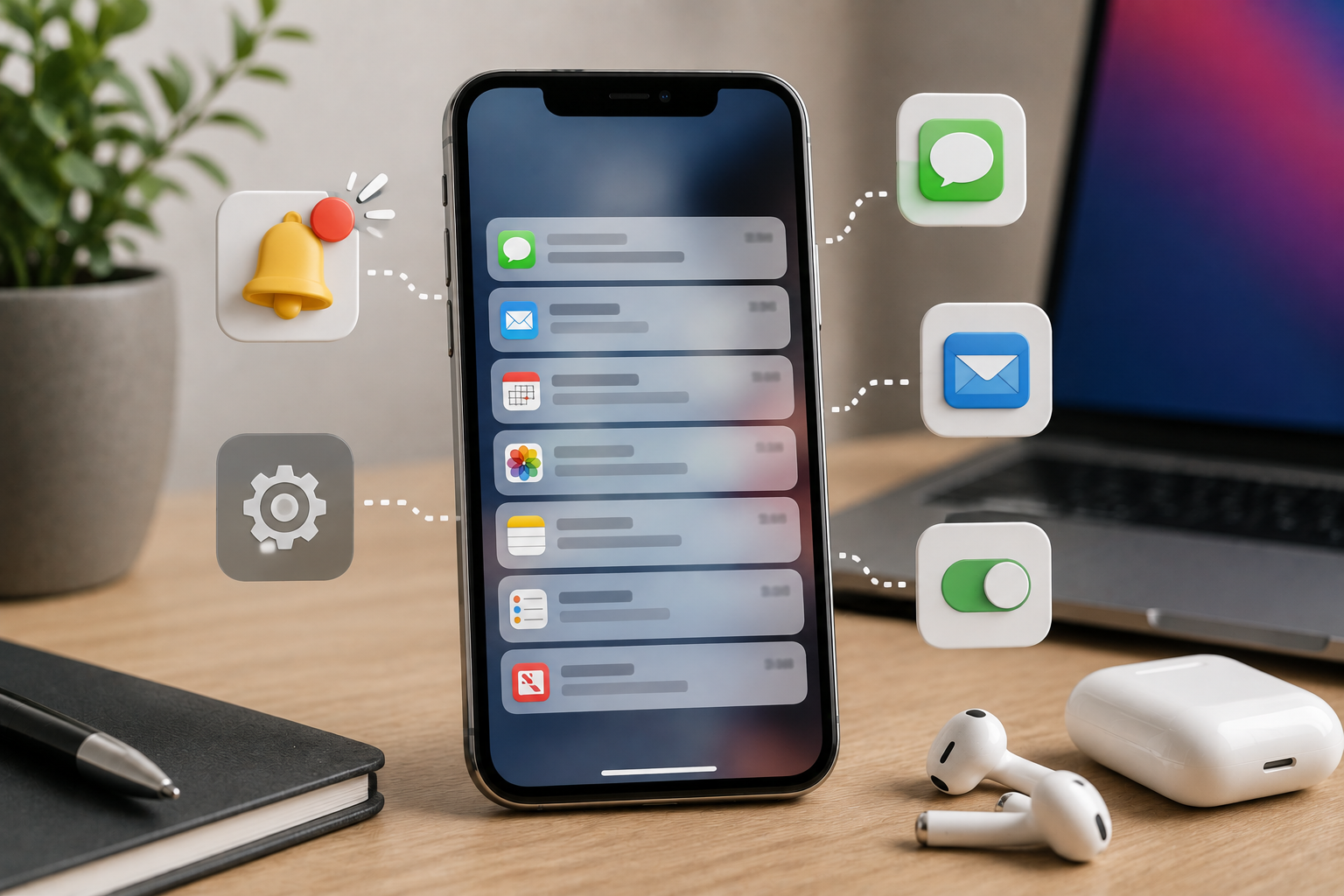
Notifications are an important part of using an iPhone. They let you know about incoming messages, missed calls, emails, appointments, app updates, and other important information without requiring you to open every application. However, notification problems can become frustrating when alerts stop appearing, sounds don't play, banners disappear, or notifications arrive late.
Several things can cause notification problems, including incorrect settings, Focus modes, low-power settings, outdated software, application issues, network problems, or temporary system glitches. Fortunately, many notification issues can be fixed with a few simple troubleshooting steps.
If your notification problems occur alongside other performance or hardware issues, professional iPhone repair Brooklyn NY can help identify the cause. Avenue D Cellular provides professional iPhone diagnostics and repair services, including battery replacement, charging repairs, and iPhone screen repair Brooklyn.
Why Are My iPhone Notifications Not Working?
Before changing settings, it's useful to understand what may be causing the problem.
Common causes include:
- Notifications being disabled
- Focus or Do Not Disturb being active
- An application having incorrect notification permissions
- Silent mode or sound settings
- Low Power Mode or other system settings
- Poor internet connectivity
- Outdated applications
- Outdated iOS
- Temporary software glitches
- Application-specific problems
The best solution depends on whether notifications are missing from one app or from multiple applications.
1. Check Notification Settings
The first thing to check is whether notifications are enabled for the affected application.
Open your iPhone's notification settings and select the application you're having problems with.
Make sure notifications are allowed and review the available alert options.
Depending on your preferences, you may be able to enable alerts on:
- The Lock Screen
- Notification Center
- Banners
Also check whether sounds are enabled if you want an audible notification.
If notifications are disabled for a particular application, enabling them may immediately solve the problem.
2. Check Focus Mode
Focus modes can prevent notifications from appearing or sounding at certain times.
If you're using a Focus mode for work, sleep, driving, or another activity, some applications or contacts may be restricted.
Check your Focus settings and see whether an active Focus is preventing the notifications you expect.
If notifications work normally after disabling Focus, review its settings rather than assuming your iPhone has a hardware problem.
Focus can be useful, but an incorrectly configured mode can make it appear as though notifications have stopped working.
3. Check Silent Mode and Volume
If notifications appear on the screen but don't make a sound, check your iPhone's sound settings.
Make sure the device isn't muted and that the notification volume is high enough to hear.
Test another sound, such as a ringtone or media playback, to determine whether the speaker is working normally.
If all sounds are missing, rather than just notification sounds, there may be a broader audio problem.
4. Restart Your iPhone
A simple restart can resolve temporary software glitches affecting notifications.
Restart the device and then send yourself a test message or notification from an application.
If notifications begin working normally after restarting, the problem may have been caused by a temporary software process.
If the problem returns repeatedly, continue troubleshooting instead of relying on frequent restarts.
5. Check Your Internet Connection
Many applications require an internet connection before they can deliver notifications.
If Wi-Fi or cellular data isn't working correctly, notifications may be delayed or fail to arrive.
Test your internet connection by opening a website or another online application.
If internet access is unreliable, troubleshoot your Wi-Fi or cellular connection first.
For messaging and social media applications, a stable internet connection is particularly important for receiving timely alerts.
6. Check Background App Activity
Some applications need permission to perform background tasks so they can refresh information and deliver timely updates.
Review your iPhone's background app settings and make sure important applications aren't unnecessarily restricted.
However, background activity can use additional battery and data, so don't enable every possible option without considering your needs.
Focus on applications where timely notifications are important.
7. Update Your Apps
Application developers regularly release updates that fix bugs and compatibility issues.
If notifications stopped working after an app update or iOS change, check whether another update is available.
An outdated application may not work correctly with the current version of iOS.
Updating the affected app can resolve notification delays, missing alerts, or unexpected crashes.
8. Update iOS
Your iPhone's operating system also plays an important role in notification delivery.
If your device is running outdated software, compatibility problems may affect applications and system notifications.
Check whether an appropriate iOS update is available.
Before performing a major software update, back up important information.
Keeping your iPhone's software current can help resolve known bugs and improve overall reliability.
9. Check Scheduled Notification Features
Some iPhone notification features can organize alerts rather than delivering every notification immediately.
If notifications appear late instead of disappearing completely, check whether scheduled notification features are affecting how your alerts are delivered.
This can be useful for reducing interruptions, but it may be confusing if you expect every notification to appear instantly.
Review these settings and adjust them according to your needs.
10. Check Apple Watch and Other Connected Devices
If you use an Apple Watch or another connected device, notifications may be handled differently depending on which device is currently being used.
For example, you may notice that notifications appear on your watch rather than your iPhone.
If alerts seem to be missing from your phone, check whether they're being delivered to another connected device.
Understanding how notifications are distributed can prevent unnecessary troubleshooting.
11. Reinstall an App With Notification Problems
If only one application isn't delivering notifications, reinstalling it may help.
Before deleting the app, make sure important information is synchronized with your account or backed up.
Then remove the application, reinstall it, and sign in again.
Check its notification permissions after installation.
If notifications work afterward, the problem may have been caused by corrupted application data or a software configuration issue.
12. Reset Network Settings if Notifications Are Delayed
If notifications are consistently delayed and you also experience connectivity problems, network settings may be involved.
Resetting network settings can sometimes resolve configuration problems.
However, this action can remove saved Wi-Fi networks and other network-related information.
Make sure you know your important Wi-Fi passwords before performing a network reset.
If you're uncomfortable changing these settings, professional assistance can help.
When Should You Get Professional iPhone Repair?
Most notification problems are software-related, but professional service may be useful when notifications are accompanied by other hardware symptoms.
Consider getting your iPhone inspected if:
- Notifications fail along with other system functions.
- The phone frequently freezes.
- The device restarts unexpectedly.
- The speaker doesn't produce sound.
- The touchscreen doesn't respond correctly.
- The iPhone was recently dropped.
- The device experienced liquid exposure.
- Multiple features are malfunctioning.
If the problem is related to a damaged speaker, display, or internal component, professional iPhone repair Brooklyn NY may be necessary.
If your screen is also damaged or the touchscreen is malfunctioning, professional iPhone screen repair Brooklyn can address those issues.
How to Prevent Notification Problems
A few simple habits can help keep notifications working reliably:
- Keep iOS updated.
- Update applications regularly.
- Review notification permissions.
- Check Focus settings.
- Maintain a stable internet connection.
- Restart the device when necessary.
- Keep adequate storage available.
- Avoid installing questionable applications.
- Back up important information regularly.
Regular maintenance can help reduce software problems and improve your overall iPhone experience.
Why Choose Avenue D Cellular?
If you're searching for reliable iPhone repair Brooklyn NY, Avenue D Cellular provides professional diagnostics and repair services for a variety of iPhone problems.
Services can include:
- Screen repair
- Battery replacement
- Charging port repair
- Speaker troubleshooting
- Touchscreen diagnostics
- Camera repairs
- General iPhone diagnostics
- iPhone screen repair Brooklyn
Professional inspection can help determine whether notification problems are caused by software settings, connectivity, or a hardware issue.
Final Thoughts
When iPhone notifications stop working properly, start by checking notification permissions, Focus settings, sound controls, internet connectivity, and background activity. Restarting your device and updating applications and iOS can also resolve many temporary problems.
If only one application is affected, reinstalling it may help. However, if notifications fail across multiple applications and the phone also has speaker, touchscreen, freezing, charging, or restart problems, professional diagnosis may be necessary.
For dependable iPhone repair Brooklyn NY, Avenue D Cellular offers professional diagnostic and repair services for common iPhone issues. Whether you need help with notification-related problems, speaker issues, battery service, or iPhone screen repair Brooklyn, getting persistent problems checked early can help keep your device working reliably.
- Goth Lifestyle
- Fashion & Style
- Music & Bands
- Art & Photography
- Creative Writing & Poetry
- Events & Scene
- Occult & Spirituality
- DIY & Tutorials
- Beauty & Self-Care
- Relationships & Dating
- Gaming & Media
- Tech & Gadgets
- Body Art & Piercings
- Underground Culture
- Spotlights & Interviews
- Travel & Places
- Lifestyle & Daily Life
- Fitness & Health
- Travel & Adventure
- Books & Literature
- Tech & Gaming
- Movies & TV
- Food & Drinks
- Humor & Memes
- Pets & Animals
- General Arts & Crafts
 Turkish
 English
 Arabic
 French
 Spanish
 Portuguese
 Deutsch
 Dutch
Dutch
 Italiano
 Russian
 Romaian
 Portuguese (Brazil)
 Greek
Greek