

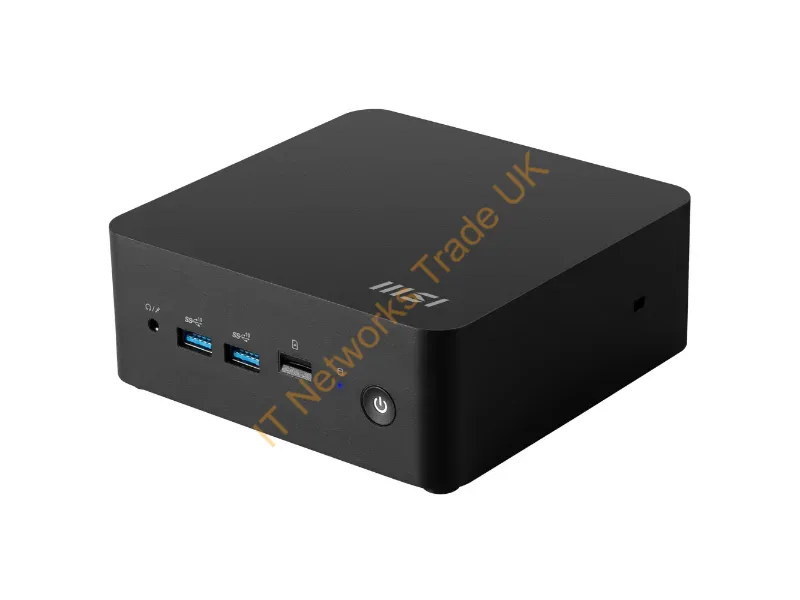

Desktop Systems: A Guide to Modern Computing
Computers have become an essential part of everyday life. From managing business operations to attending online meetings, studying, and creating digital content, people depend on reliable technology to complete many tasks. Among the available computer options, traditional desktop computers remain a practical choice for homes, offices, and professional environments.
Although laptops and mobile devices offer portability, desktop computers provide several advantages for users who need a dedicated workstation. Their larger components, flexible configurations, and comfortable working setups make them suitable for different computing requirements.
Choosing the right computer involves more than looking at its appearance or price. Users should understand the hardware, performance, storage, and features that support their daily activities.
Desktop Systems continue to serve an important role in modern workplaces because they can handle everyday office tasks, business applications, communication, and more demanding workloads, depending on their specifications.
What Are Desktop Computers?
A desktop computer is a personal computer designed to remain in one location, usually on or near a desk. Unlike portable devices, it typically uses separate components such as a monitor, keyboard, mouse, and computer tower.
These components work together to provide a complete computing setup. Some models also feature an all-in-one design, where the main computer hardware is built into the monitor.
Desktop computers are available in different configurations. Basic models can support everyday activities, while higher-performance options are designed for specialized software and demanding applications.
Main Components of a Desktop Computer
Understanding the main hardware components can help users make better purchasing decisions.
Processor
The processor, also called the CPU, handles instructions and calculations. Its performance affects how quickly a computer processes information and manages applications.
Users should choose a processor based on their intended workload rather than selecting the most expensive option automatically.
RAM
Random Access Memory (RAM) allows a computer to manage active applications and tasks. More memory can improve multitasking, especially when several programs are running simultaneously.
The required amount depends on the operating system, applications, and workload.
Storage
Storage holds the operating system, software, documents, and other files. Solid-state drives (SSDs) generally provide faster loading and file access than traditional hard disk drives (HDDs).
Users should consider both storage capacity and speed when comparing computers.
Graphics and Display
The graphics system processes visual information and sends it to the monitor. Integrated graphics are suitable for many everyday tasks, while dedicated graphics cards can benefit users working with advanced visual applications, gaming, or video editing.
Benefits of Using Desktop Computers
Desktop computers offer practical advantages for different types of users.
One major benefit is their flexibility. Many desktop models allow users to upgrade selected components, such as memory, storage, or graphics hardware. This can help extend the useful life of a computer.
They can also provide comfortable working arrangements. Users can select a monitor size, keyboard, mouse, and other accessories that suit their workspace.
Another advantage is the variety of available configurations. A small office may need basic computers for administrative tasks, while a design team may require more powerful machines for specialist software.
Choosing the Right Desktop for Your Needs
Before purchasing a computer, identify the tasks it will handle regularly. A system intended for browsing, email, and document editing may not need the same specifications as one used for engineering software or multimedia production.
Consider these important factors:
-
Performance: Match the processor and memory to your workload.
-
Storage: Choose enough capacity for applications and files.
-
Upgrade options: Check whether important components can be replaced or expanded.
-
Connectivity: Review available USB ports, display connections, and networking options.
-
Workspace: Make sure the computer and monitor fit comfortably in the available area.
-
Budget: Compare specifications and overall value rather than focusing only on price.
Thinking about future requirements can also help prevent an early replacement.
Desktop Computing Solutions from itnetworkstrade
Businesses and individuals researching computer equipment can explore itnetworkstrade for information about available technology solutions. Reviewing product details and specifications is a useful way to understand which equipment may suit different computing requirements.
Comparing hardware carefully helps buyers make informed decisions based on performance, compatibility, and intended use.
Visit us:https://itnetworkstrade.co.uk/
Desktop Maintenance and Long-Term Performance
Regular maintenance can help keep a desktop computer working reliably. Dust can collect around fans and ventilation areas, so keeping the equipment clean and allowing proper airflow is important.
Users should also install operating system updates and security patches when available. Updated software can improve compatibility and address known security issues.
Organizing files, removing unnecessary applications, and monitoring available storage can support smoother everyday use. Important documents should also be backed up regularly to an external drive or secure cloud storage service.
If a computer becomes unusually slow, frequent crashes or overheating may indicate a hardware or software issue. Identifying the cause early can help prevent more serious problems.
Conclusion
Desktop computers remain useful for people who need dependable performance, flexible hardware options, and a dedicated workspace. Their configurations can support everything from basic office activities to specialized professional tasks.
The best choice depends on the user's workload, budget, storage needs, and plans for future upgrades. By comparing specifications and maintaining the equipment properly, buyers can select a computer that supports their daily requirements for years.
Frequently Asked Questions
1. Are desktop computers still useful today?
Yes. Desktop computers remain useful in offices, homes, educational settings, and professional environments where users need a dedicated and configurable workstation.
2. How much RAM should a desktop computer have?
The required RAM depends on how you plan to use it. Basic tasks need less memory than demanding applications, multitasking, and professional workloads. Check the software requirements before purchasing.
3. Is an SSD better than an HDD for a desktop?
An SSD generally provides faster startup times and application loading. An HDD can offer more storage capacity at a lower cost. Some users choose a combination of both.