

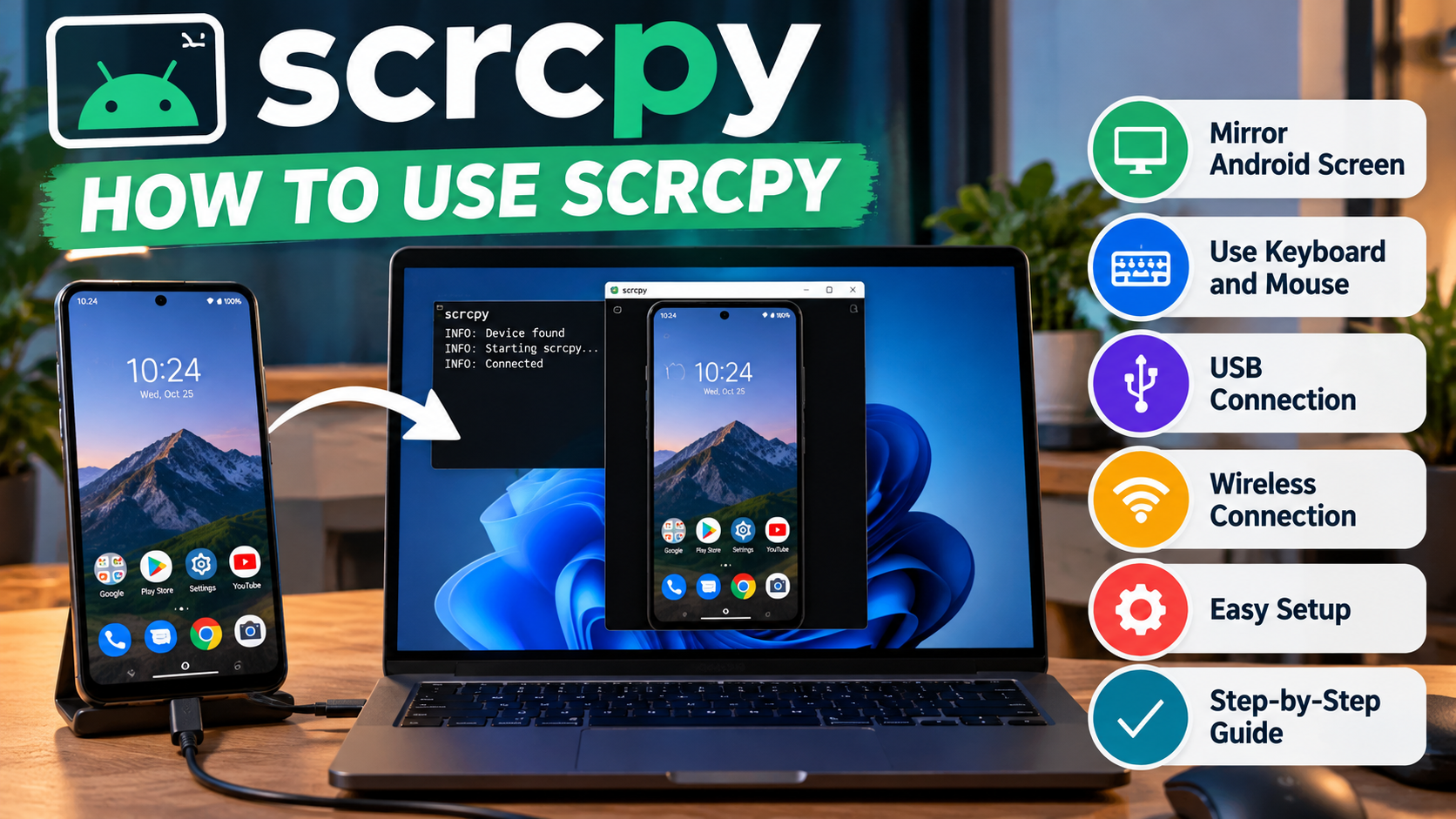

Have you ever wished you could use your phone on your computer screen? Maybe you want to reply to messages with a real keyboard, show an app to a friend, or record something on your phone without extra gear. There is a free way to do all of that, and it is easier than it sounds.
If you want a longer reference to keep open while you work, this page on how to use Scrcpy explains each step in detail. Below is a simple version written for beginners, so you can follow along even if you have never touched a developer setting before.
What Is Scrcpy?
Scrcpy is a free, open source tool that shows your Android screen on a Windows, Mac, or Linux computer. You can then control the phone with your mouse and keyboard. You do not need to root your phone, and you do not need to install an app on it.
It talks to your phone through ADB, which stands for Android Debug Bridge. That is a feature built into Android for developers, but you can use it without any coding knowledge.
What You Need Before You Start
Check these few things first:
- An Android phone or tablet with Android 5.0 or higher
- A Windows, Mac, or Linux computer
- A USB cable that can move data, not just charge
- USB debugging switched on
- A shared Wi-Fi network, only if you want to go wireless
Some features depend on your Android version. Audio forwarding, for example, only works on Android 11 and above.
Step 1: Turn On USB Debugging
This setting lets your computer talk to your phone. Open Settings and tap About phone. Find Build number and tap it seven times. A message will tell you that Developer Options are unlocked.
Now go back to Settings and open Developer Options. Switch on USB debugging. If you have a Xiaomi, Redmi, or POCO phone, look for a second toggle called USB debugging (Security Settings) and turn that on too. Without it, you may get a permission error later.
Step 2: Download Scrcpy
Download Scrcpy from the official GitHub releases page. Skip unofficial download sites, because some of them add extra software to the files.
On Windows, you download a ZIP file. Extract it into its own folder and keep all the files together. On a Mac, you can install it with Homebrew. On Linux, you can use the Snap package or the release tarball.
Step 3: Connect Your Phone
Plug your phone into the computer with the USB cable. Look at your phone and set the USB mode to File Transfer (MTP), not Charging only. A message will ask if you want to allow USB debugging from this computer. Tap Allow.
Then open a terminal in the Scrcpy folder and type scrcpy. After a few seconds, your phone screen should appear in a window on your computer.
If nothing shows up, type adb devices to see what the computer can find. If the status says device, you are connected. If it says unauthorized, go back to your phone and accept the prompt again.
Step 4: Control Your Phone
Once the window is open, your mouse works like your finger. A left click is a tap. A right click goes back, and a middle click goes to the Home screen. You can scroll with the mouse wheel, and you can type with your computer keyboard when a text box is active.
Scrcpy also has shortcuts that use a MOD key. On Windows and Linux, that key is Right Alt. On a Mac, it is Right Cmd. A few handy ones are:
- MOD + H for Home
- MOD + B for Back
- MOD + F for fullscreen
- MOD + P to turn the phone screen on or off
Going Wireless
Once the cable setup works, you can try Wi-Fi. Both your phone and computer must be on the same network. A steady 5 GHz connection usually works best. Mobile data does not work for this.
On Android 11 and above, open Developer Options and turn on Wireless debugging. Tap Pair device with pairing code, and note the address, port, and six digit code. On your computer, run adb pair with that address and port, then enter the code. After that, run adb connect with your phone’s IP address, and finally run scrcpy.
On Android 10 and below, connect by USB first and run adb tcpip 5555. Find your phone’s IP address in Settings, unplug the cable, run adb connect with that address, and then run scrcpy.
Record Your Screen
To record what happens on your phone, type scrcpy --record screen.mp4. Use your phone as usual, and press Ctrl + C when you are done. The video is saved in the folder where you ran the command.
This is great for short tutorials, bug reports, or sharing how an app works with a friend or a client.
Sound From Your Phone
On Android 11 and above, your phone audio plays through your computer by default. If you want silence, add --no-audio to the command. Some streaming apps block audio capture, so sound may not work with every app.
Fixing Common Problems
Most problems are small, and the fix is usually quick. If your computer cannot find the phone, set the USB mode to File Transfer (MTP). If the device shows as unauthorized, accept the debugging prompt on the phone. If you see a black screen, unlock the phone and run Scrcpy again.
If something stops working after an Android update, open Developer Options and tap Revoke USB debugging authorizations. Then reconnect the phone and accept the prompt again. On Windows, the file named scrcpy-console.bat keeps the window open, so you can read any error message.
Final Thoughts
Using Scrcpy mostly comes down to a good first setup. Download from the official source, turn on USB debugging, pick the right USB mode, and approve the prompt on your phone. After that, wireless mirroring, recording, and shortcuts are easy extras.
Give yourself ten quiet minutes, follow the steps in order, and you will likely have your phone on your screen before you know it.